

Mosawer Connect, upload while you shoot
A computer app that uploads your photos to the album while you shoot, so guests find theirs during the event.
Steps
-
Download it from the download page: Download for Windows or Download for macOS.
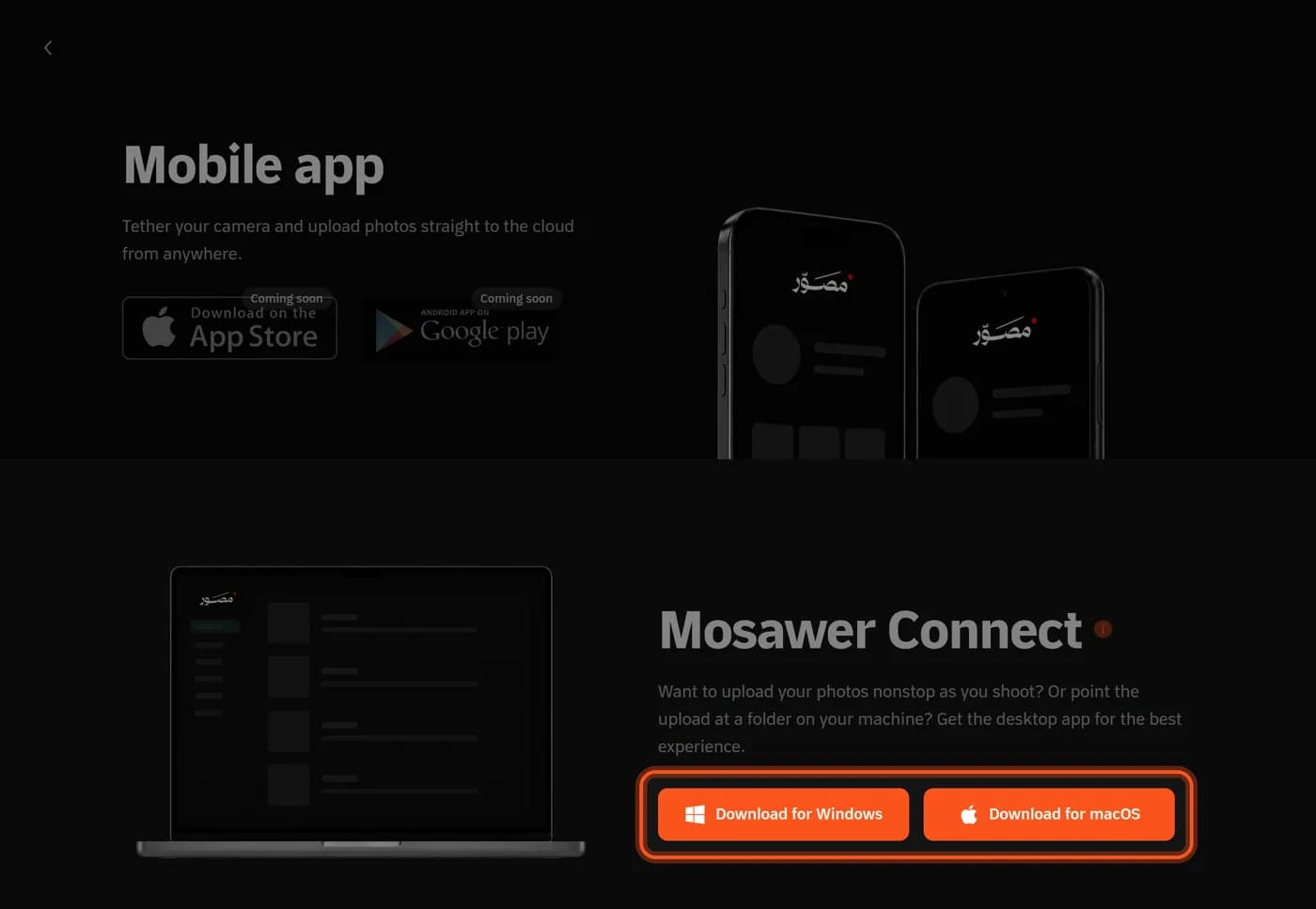
-
Sign in with your email and password, or tap Continue with Google and approve in the browser: Approve & connect.
-
Choose the album from the list, or create a New album.
-
Upload: drag photos into the app, or tap Watch a folder and pick a folder whose new photos are uploaded as they arrive.
Watched folders
- What arrives in the folder after you add it is uploaded, subfolders included.
- Each folder is tied to the album that was selected when you added it.
- System folders and Desktop, Documents and Downloads themselves are refused, so use a folder for the shoot.
- Closing the window doesn't stop uploads: choose Keep running in the background. Photos that arrive while the app is fully quit are not uploaded.
Your camera
Connect doesn't talk to the camera. Have the camera's own software (such as EOS Utility or Imaging Edge) save JPEGs into the watched folder.
File types and lost connections
- JPG, PNG, WebP, HEIC and TIFF, up to 100 MB. RAW files are not uploaded.
- If the internet drops or the computer sleeps, uploads pause and resume by themselves. Retry anything that failed with Retry failed.
Removing a computer
In Settings → Security → Connected devices, tap ⋯ then Revoke. A computer that doesn't connect for 10 days is signed out by itself, and changing your account password signs every computer out.
Last updated: October 27, 2026