

Photo editor and presets
Edit your photos right in Mosawer, and save your edits as a preset that applies itself to new uploads.
The editor
Open a photo in the album and tap Edit. The tools: Crop, Finetune, Filter, Annotate, Sticker, Redact and Resize.
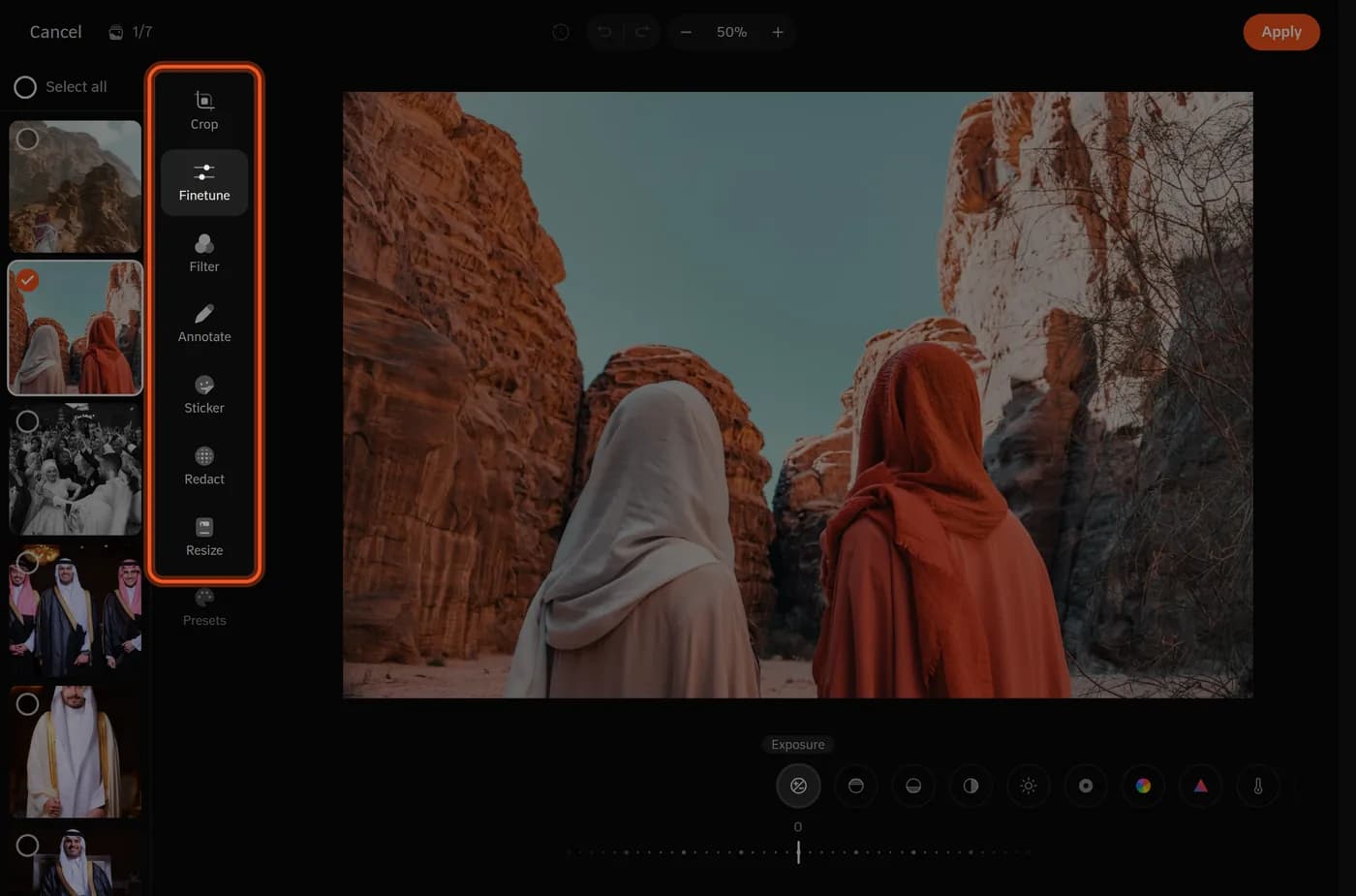
- Several photos at once: Finetune, Filter and Presets work on many photos: Select all, then Apply to. The other tools edit one photo.
- Your original is kept: editing never touches the file you uploaded. Right-click a photo for Copy edits, Paste edits and Revert to original.
Presets
-
Create it in the editor: edit a photo with Finetune and Filter, then in Presets tap Create and name it.
-
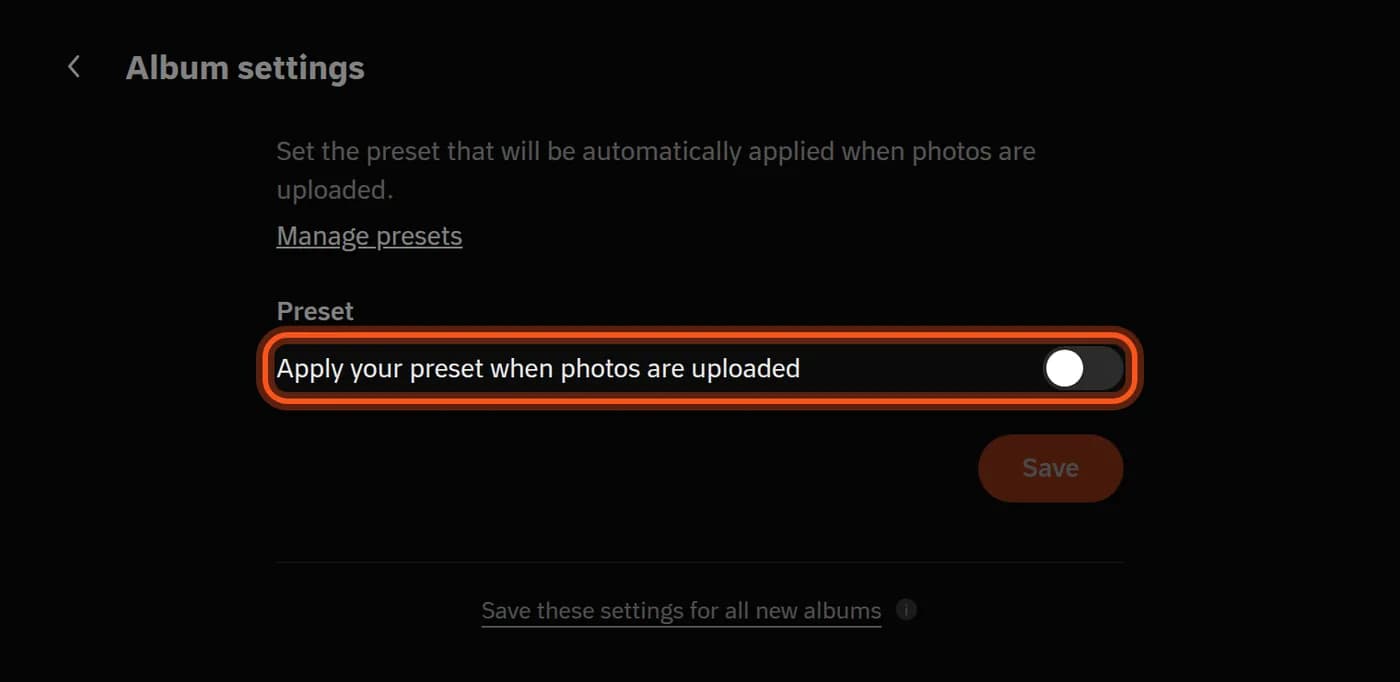
Turn it on for the album: in Album settings → Preset, choose it and turn on Apply your preset when photos are uploaded.
-
Tap Save. Every photo you upload after that gets the preset.
Photos already in the album don't change. Apply it to them in the editor: Select all, then Presets, then Apply to.
Rename or delete presets from Manage presets. A deleted preset stops applying in the albums that used it.
Last updated: October 27, 2026